AI tools
Connect an AI tool
Lookout runs an MCP server, so an AI tool such as Claude Code, Cursor or Codex can read your projects’ problems, scans and search data and answer questions about them.
What your AI tool can do
Your AI tool can read what Lookout has already stored for every project on your account: problems and their evidence, scans, search ideas and totals, URL Inspection reports and speed results.
Access is read-only. Your AI tool can’t change a project, start a scan or change your website, and Lookout doesn’t call Google or Bing on its behalf.
Set it up
Step 1: Create a key
Go to Settings, then API & MCP. Give the key a name you’ll recognise, such as the tool and computer it’s for, and choose when it expires: in 30 days, in 90 days, in 1 year or never. You can have up to 10 active keys.
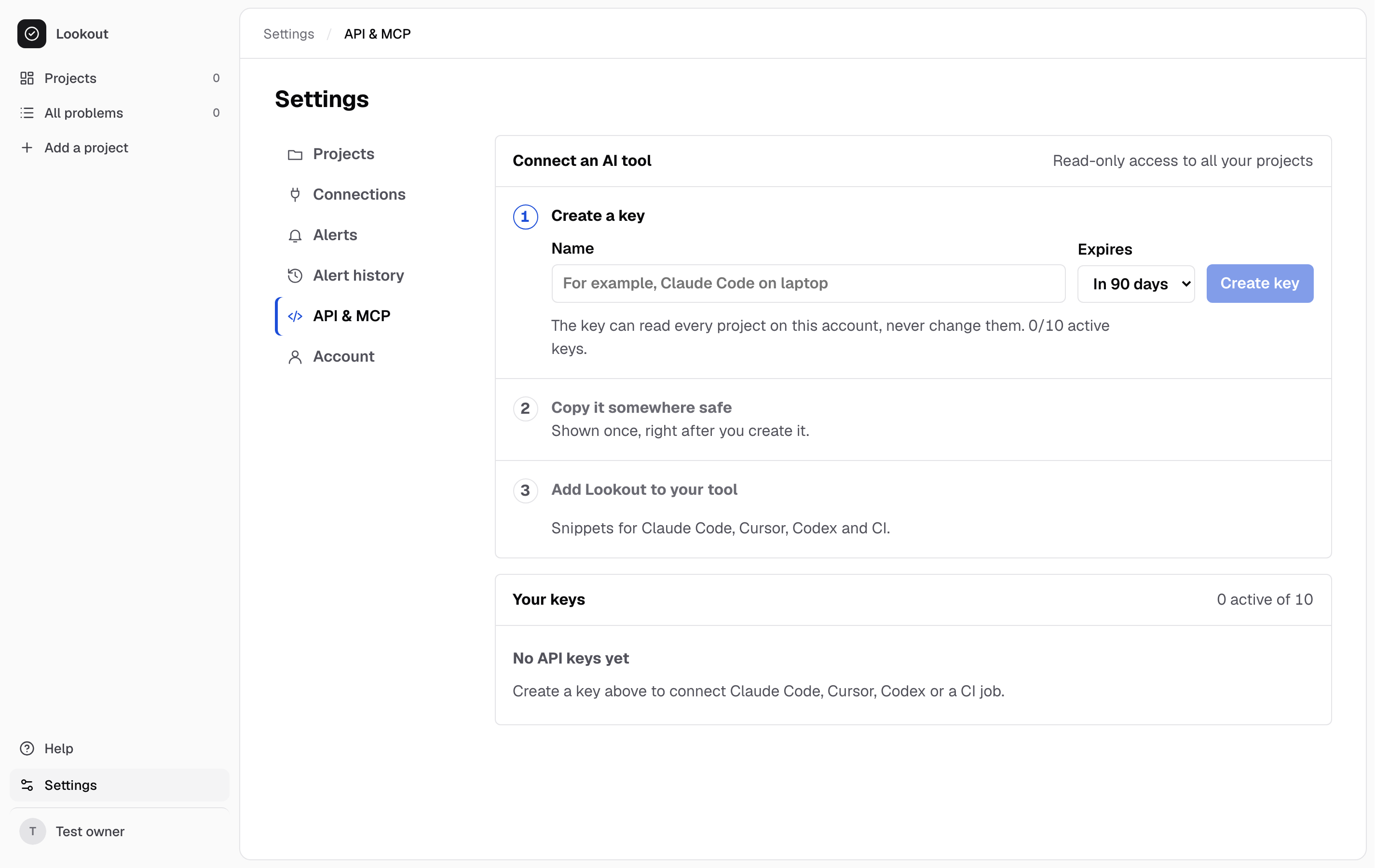
Step 2: Copy it somewhere safe
Lookout shows the key once. Keep it in your password manager or as an environment variable named LOOKOUT_API_KEY. Lookout keeps only a fingerprint of it, so a lost key can’t be shown again: revoke it and create another.
Step 3: Add Lookout to your tool
Each snippet reads the key from LOOKOUT_API_KEY, so the key stays out of your files.
Setup for each tool
The server address is https://lookoutseo.app/mcp.
Claude Code
Run in a terminal. Claude Code saves the key in its own settings; use .mcp.json with ${LOOKOUT_API_KEY} to keep it out of a project.
claude mcp add --transport http lookout https://lookoutseo.app/mcp \
  --header "Authorization: Bearer $LOOKOUT_API_KEY"
Cursor
Add to ~/.cursor/mcp.json, then reload Cursor.
{
  "mcpServers": {
    "lookout": {
      "url": "https://lookoutseo.app/mcp",
      "headers": { "Authorization": "Bearer ${env:LOOKOUT_API_KEY}" }
    }
  }
}
Codex
Add to ~/.codex/config.toml.
[mcp_servers.lookout]
url = "https://lookoutseo.app/mcp"
bearer_token_env_var = "LOOKOUT_API_KEY"
CI or scripts
Store the key as a CI secret named LOOKOUT_API_KEY. Never commit it.
curl -sS https://lookoutseo.app/mcp \
  -H "Authorization: Bearer $LOOKOUT_API_KEY" \
  -H "Content-Type: application/json" \
  -H "Accept: application/json, text/event-stream" \
  -H "MCP-Protocol-Version: 2026-07-28" \
  -H "Mcp-Method: tools/call" -H "Mcp-Name: list_sites" \
-d '{"jsonrpc":"2.0","id":1,"method":"tools/call","params":{"name":"list_sites","arguments":{},"_meta":{"io.modelcontextprotocol/protocolVersion":"2026-07-28","io.modelcontextprotocol/clientCapabilities":{}}}}'Look after your keys
- A key reads every project on your account. You can’t limit a key to some projects.
- Settings, API & MCP lists your keys with when each was last used. Revoke stops a key working at once; revoked and expired keys stay listed.
- Every tool and its inputs are in the MCP tool reference.